Where does the file go on PC?
The default folder
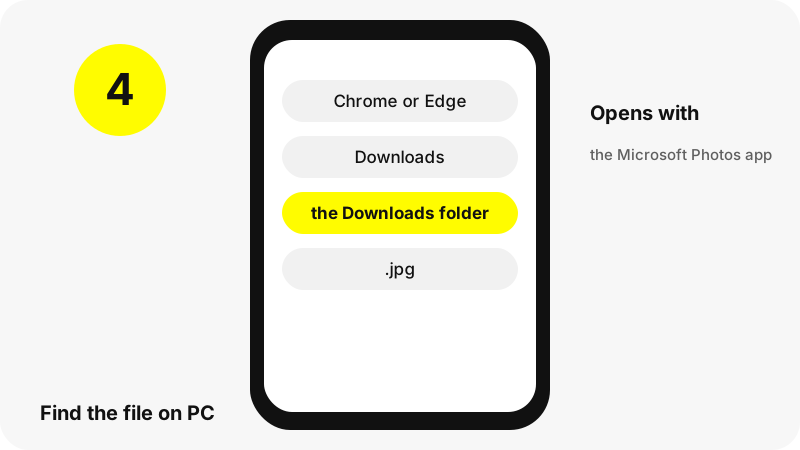
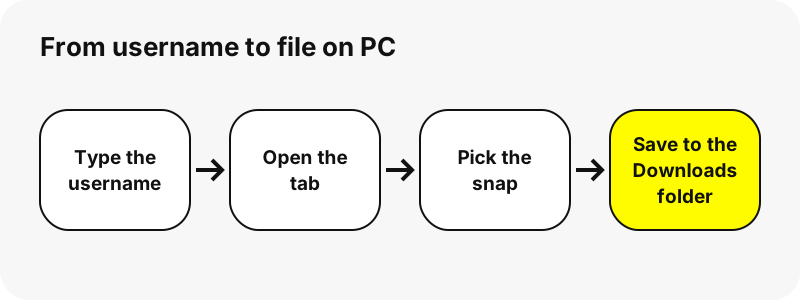
Chrome on Windows saves to \Users\<username>\Downloads by default, and Edge shows its folder (for example C:\Users\[your name]\Downloads) under Settings › Downloads › Location.
Finding it right after the download
In Chrome, the download icon next to the address bar shows progress and the finished file; More › Downloads lists every download.
PC at a glance
| Question | Answer on PC |
|---|---|
| Browser | Chrome or Edge |
| Where the file lands | Chrome on Windows saves to \Users\<username>\Downloads by default, and Edge shows its folder (for example C:\Users\[your name]\Downloads) under Settings › Downloads › Location. |
| How to see it | In Chrome, the download icon next to the address bar shows progress and the finished file; More › Downloads lists every download. |
| Opens with | The Microsoft Photos app (JPEG and PNG supported) |
| Change the folder | Chrome: Settings › Downloads › Change. Edge: Settings › Downloads › Location › Change. |
What do you get?
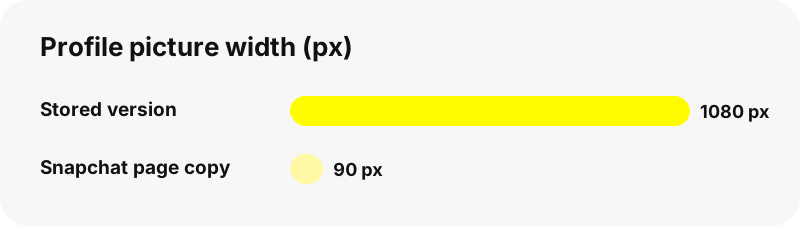
Snapchat's profile page loads a small copy of the profile picture (90×90 pixels in our test). SnapViewer asks Snapchat's image server for the stored version instead: 1080×1080 pixels (128 KB JPG) for one account in our tests, 362×362 and 375×375 for two others, because the stored size depends on what the owner uploaded. Only public profiles show a profile picture to everyone.
| Detail | Profile Photos from Snapchat |
|---|---|
| File extension | .jpg |
| Format | the profile picture as a JPG in its stored size |
| Largest version | the stored size of the picture, up to 1080×1080 in our tests (it varies by account; the profile page itself shows a 90-pixel copy) |
| Opens on PC with | The Microsoft Photos app (JPEG and PNG supported) |
| Preset on this page | Profile picture viewer |
Which app opens it on PC?
The Microsoft Photos app (JPEG and PNG supported).
How do you keep it with your photos?
Move the file from Downloads to Pictures, Videos or Music in File Explorer if you want to keep it with your other media.
What should you know on PC?
Every browser keeps its own download folder setting; check the one you used.
What if the download does not show up on PC?
- Check the Downloads folder first: In Chrome, the download icon next to the address bar shows progress and the finished file; More › Downloads lists every download.
- Make sure the profile is public. Friends-only Stories and private accounts cannot be read without logging in, and this tool never asks for a Snapchat password.
- Download links expire after one hour. If a button stops working, look the username up again.
- Stories disappear from Snapchat after a while; if a snap is gone from the profile, it is gone here too.
What else can you save on PC?
Which other devices are covered?
Other tools
Frequently asked questions
Where do downloaded Snapchat profile pictures go on PC?
Chrome on Windows saves to \Users\<username>\Downloads by default, and Edge shows its folder (for example C:\Users\[your name]\Downloads) under Settings › Downloads › Location.
How do I find a downloaded Snapchat file on PC?
In Chrome, the download icon next to the address bar shows progress and the finished file; More › Downloads lists every download.
Which app opens the file on PC?
The Microsoft Photos app (JPEG and PNG supported).
Can I choose another download folder on PC?
Chrome: Settings › Downloads › Change. Edge: Settings › Downloads › Location › Change.
What is the best quality I can get?
The stored size of the picture, up to 1080×1080 in our tests (it varies by account; the profile page itself shows a 90-pixel copy). The tool never upscales a file or relabels it as HD or 4K.
Do I need an app or a Snapchat account?
No. It runs in the browser (Chrome or Edge), with no sign-up and no app to install.
Is SnapViewer part of Snapchat?
No. SnapViewer is an independent tool and is not affiliated with Snap Inc. It only reads public profiles.
Can I see private or friends-only content?
No. Only public profiles and public Stories can be read without logging in. Anything shared with friends only is out of reach, by design.
Why is the picture sharper than on Snapchat's page?
The page shows a 90-pixel copy; the tool asks for the stored version, up to 1080×1080 in our tests. It is the same picture, not an upscale.
Can I see the profile picture of a private account?
No. Personal accounts do not show a profile photo to the public, and the tool cannot get around that.
Guides
Profile picture — Open a public profile picture in its stored size and save it.